Create a multi-size ICO favicon without leaving the browser
Updated:
A useful favicon .ico is rarely one tiny bitmap. Browsers and OS shortcuts request several square sizes. WebP.Best renders those sizes from your PNG, WebP, JPG, or AVIF, then packs them into one .ico—without uploading the logo.
What a favicon ICO should contain
Classic favicon.ico files embed multiple resolutions so sharp icons appear on retina tabs, bookmarks, and desktop shortcuts. Shipping only a blurry 16×16 that gets upscaled looks dated.
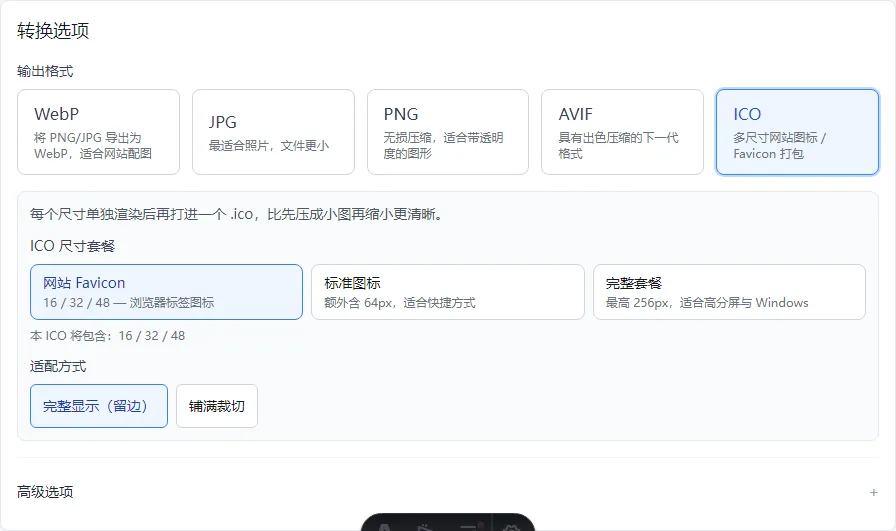
WebP.Best offers packs such as Favicon (16/32/48), Standard (adds 64), and Full (up to 256) so you can match common browser and Windows needs without designing each size by hand.
- Browser tabs → smaller sizes in the Favicon pack
- Shortcuts / some OS surfaces → Standard or Full
- Source art → preferably a clear square logo or mark
Prepare the source image
Start from a square or near-square master with clean edges. Transparent PNG or WebP masters work well. Busy full-bleed photos make weak 16px icons—simplify or crop to the mark first.
If your logo is wide wordmark-only, expect letterboxing or cropping when forced into a square. Decide whether the icon should be a symbol mark or an abbreviated monogram before you convert.
Steps on WebP.Best
Open the homepage converter and add your logo file (PNG or WebP with transparency works best). Set output format to ICO.
Pick a size pack: Favicon (16/32/48 px) covers browser tabs; Standard adds 64 px for shortcuts; Full goes up to 256 px for sharper Windows icons. You do not need to export each size yourself—the pack bundles them into one .ico.
Choose how the square is filled: Fit inside keeps the whole logo visible with margins if the source is not square; Fill and crop scales up to fill the square and may cut edges—better for simple symbols than tiny text.
Convert, download the .ico, then check the smallest size in a browser tab. Everything runs locally on your device.
Fit inside vs fill and crop: which to pick
Think of the icon as a square frame. Fit inside shrinks the logo until it all fits inside the frame—nothing is cut off, but you may see empty bands on the sides or top/bottom if your logo is wide or tall.
Fill and crop zooms until the frame is completely covered, then trims whatever hangs over the edge. Good when the mark is a simple circle or letter; risky when the logo has long words that could lose letters at 16 px.
Need a strict square master before ICO? Expand Advanced options, choose Exact width × height (for example 512×512), pick Fill and crop or Fit inside, convert to PNG once, then run ICO on that square file. If the default ICO packs already look fine, skip this extra step.
- Wide wordmark only → Fit inside, or redesign a square symbol mark first
- Round app-style icon → Fill and crop often looks cleaner
- Unsure → try Fit inside first; switch to Fill and crop only if margins look awkward
Using the ICO on a site
Place favicon.ico at the site root or link it from your HTML head with an appropriate type. Many static hosts also accept PNG favicons; ICO remains useful for legacy bookmarks and some desktop contexts.
After deploy, hard-refresh or use a private window: browsers cache favicons aggressively. A “wrong icon” after upload is often cache, not a bad ICO.
What this won't do
This path is for static icons. It does not design your brand, remove backgrounds automatically, or generate SVG. Extremely thin linework may disappear at 16px—test the smallest size.
Packing runs locally with preset size bundles. If you also need a phone “Add to Home Screen” icon, you may need separate PNG files—one ICO alone may not be enough.
FAQ
Do I need Photoshop to make favicon.ico?
No. WebP.Best can render multiple sizes and pack an ICO in the browser from PNG/WebP/JPG/AVIF.
Should I use cover or fit inside?
Fit inside keeps the whole logo. Cover fills the square and may crop—better for simple symbols than for small text.
Is a single 32×32 PNG enough?
It can work for basic tabs, but multi-size ICO or additional PNG links look sharper on high-DPI displays and shortcuts.
Why didn’t my new favicon show up?
Browsers cache favicons heavily. Try a private window, another browser, or a cache-busting query on the icon URL.