WebP won’t open? Convert it—don’t rename the file
Updated:
If a picture looks fine in Chrome but Word, an older Photoshop, a print shop, or Windows Photos rejects it, you are often holding a WebP file. Changing .webp to .jpg does nothing: the bytes are still WebP. You need a real re-encode.
Who this guide is for
This page is for people who saved an image from a website, chat, or social feed, then hit a wall when opening it elsewhere. Typical symptoms: Word says the format is unsupported; a school or government upload form only accepts JPG/PNG; a print vendor asks for “normal photos”; Windows Photos or an older editor fails silently.
If your file came from an iPhone camera roll as .heic / .heif, that is a different format—see our HEIC vs WebP guide and use heic.best instead.
Why websites hand you WebP
Modern sites often serve WebP (or AVIF) to browsers because the files are smaller for the same visual quality. Your browser can decode WebP for display. When you right-click and save, many pages give you the WebP asset they were already using—not a separate JPG.
Compatibility outside the browser is uneven. Recent Windows and Photoshop versions handle WebP better, but Word templates, school upload forms, website backends, and print shops still often accept JPG or PNG only. That gap—not a “broken download”—is why the same picture “works in Chrome” and “fails in Word.”
- News, blogs, and product pages: saving the on-page image often yields .webp
- Messaging apps: forwarded images may keep WebP from the original site
- Screenshots of a browser window are usually PNG—those are a different case
How to confirm it is WebP
Look at the file extension first: .webp is the obvious signal. If Windows hides extensions, enable them in File Explorer view settings, or check Properties. Some downloads arrive with a generic name and only the type column shows WebP.
Opening the file in a hex viewer is unnecessary for most people. A practical test: if Chrome or Edge opens it but Word/your form rejects it, treat it as WebP until a converter proves otherwise.
Why renaming .webp to .jpg fails
A file extension is a label, not a converter. Renaming only changes what the OS guesses the format is. The compressed pixel data inside remains WebP. Software that cannot decode WebP will still fail—or worse, claim success and produce garbage.
You must decode WebP and encode JPG or PNG. That is what WebP.Best does in your browser: decode locally, then write a new file with the format you choose.
Convert on WebP.Best (local, private)
Open the homepage converter on WebP.Best. Add one or many .webp files. For photographs destined for Word, email, or print, choose JPG. For logos, stickers, or anything that needs a clear background, choose PNG so transparency can survive.
Adjust quality for JPG/WebP/AVIF if you care about file size. Start conversion, then download each result or use Download All. Processing stays on your device—images are not uploaded to our servers, which matters for IDs, invoices, and unpublished drafts.
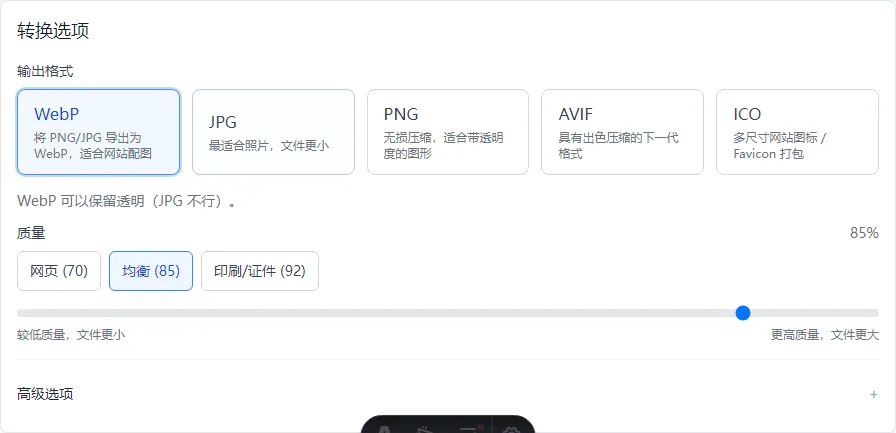
- Photos / forms / print → JPG
- UI assets / logos with see-through areas → PNG
- Need smaller web assets again later → you can also export back to WebP
Upload rejected? Shrink the image first (Advanced options)
Many email attachments, school forms, and government portals cap file size (for example 2 MB) or pixel width (for example 1920 px). Converting WebP to JPG/PNG changes the format—it does not always make a huge phone screenshot small enough. On the homepage converter, expand Advanced options and resize before you convert.
You do not need to memorize every control. For most people: if you only need the picture smaller while keeping proportions, choose Size → Longest edge and enter the limit the form mentions (1920 is a common default). If the form demands an exact size such as 1080×1080, choose Exact width × height and then pick how the image should fit that box.
Turn on Only shrink, do not enlarge when it is available. Small icons and thumbnails should not be stretched bigger and softer. Use Rotate when a phone photo saved sideways still displays the wrong way.
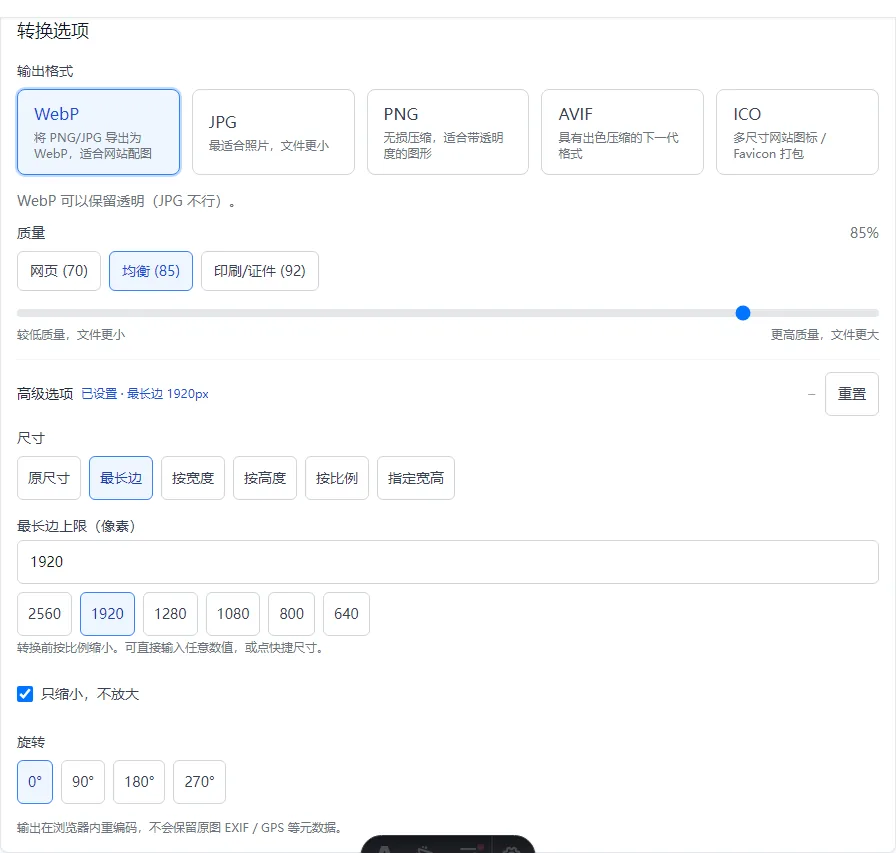
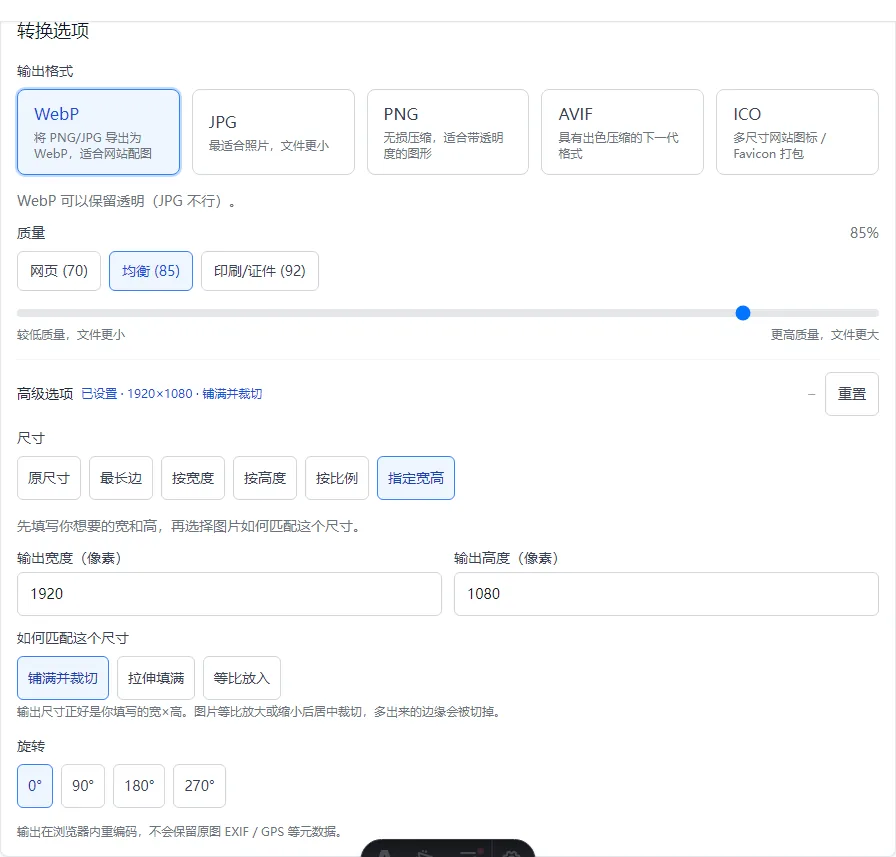
- Original size — format change only (WebP → JPG/PNG). Use when uploads fail on format, not on size.
- Longest edge — the usual fix. If you enter 1920, the longer side becomes 1920 px and the other side scales down proportionally. Nothing gets squashed.
- By width / By height — when the form says “width must be 800 px” or “height must be 600 px”.
- By percentage — for example 50 means half the pixels in each direction. Handy when “a bit smaller” is enough.
- Exact width × height — when the portal requires a fixed canvas such as 1080×1080. You must also choose how the image matches that box (below).
- Fit inside — the whole image stays visible. Empty margins may appear if your photo is not the same shape as the box (like placing a photo in a frame).
- Fill and crop — output is exactly the width × height you typed. The image scales to cover the box and extra edges are cut off (similar to a profile-photo crop).
- Stretch to fill — forces the image to the exact box even if people look wider or taller. Avoid unless a system explicitly demands distortion.
Batch work without desktop software
Homework packs, product catalogs, and chat dumps are rarely one file. Add the whole set, convert once, and zip-download when the queue finishes. You do not need Photoshop actions or a paid desktop suite for this path.
Animated WebP is out of scope here: the tool targets static frames. If a “WebP” is actually a short animation, use a dedicated animated-image tool.
Privacy and what this tool can't fix
WebP.Best is a browser-side converter for static WebP, JPG, PNG, AVIF, and ICO. It does not fix corrupt downloads, locked files, or printer driver bugs. If conversion fails, try re-saving from the original page or opening the file in another browser first.
Your files stay on your device during conversion. Open the homepage and try a sample image anytime to confirm the steps work for you.
FAQ
Can I just rename .webp to .jpg?
No. The file is still WebP data. Software that cannot decode WebP will still fail. Use a real converter that re-encodes the pixels.
Will converting WebP to JPG reduce quality?
JPG is lossy. Use a higher quality setting for print or documents; use a lower setting for rough drafts and chat. PNG is lossless if you need every pixel preserved and can accept larger files.
Why does Windows Photos open some WebP files but Word still fails?
Different programs support different formats. Your photo viewer may open WebP while Word or an upload form still rejects it. Convert to JPG/PNG when the destination is picky.
What does “longest edge” mean in Advanced options?
It limits the longer side of the image in pixels. Enter 1920 and a 4000×3000 photo becomes 1920×1440—the shape stays the same, only smaller.
The form wants 1080×1080. Which match mode should I pick?
Try Fit inside first if you must see the whole picture (may add margins). Use Fill and crop when the portal crops avatars to a square. Avoid Stretch unless they require exact distortion.
Is my image uploaded to WebP.Best?
No. Conversion runs in your browser so files are not uploaded—helpful for IDs, invoices, and drafts.